This guide walks through every screen, every option and every workflow in the Gbox console,
step by step. Part Two is for developers who connect their own bot or application.
Gbox is a small device plus a cloud platform that answers your business phone calls with an AI receptionist.
The device pairs to your phone over Bluetooth. When a call comes in it answers automatically and sends
the call audio to an AI agent in the cloud. Your number, your SIM and your phone stay exactly as they are.
You can also link a WhatsApp number and have its voice calls answered by the same agent.
1A service is one agent. Its greeting, language, instructions and engine all live there.
2A device belongs to one service. It is the physical box that takes the calls.
3The platform decides — for every call — who answers. The device never chooses.
The core rule: the service route decides who answers a call. Changing the engine
(built-in / Gemini Live / your own bot) applies to the next call — no device restart, no downtime.
2 · Signing in and your account
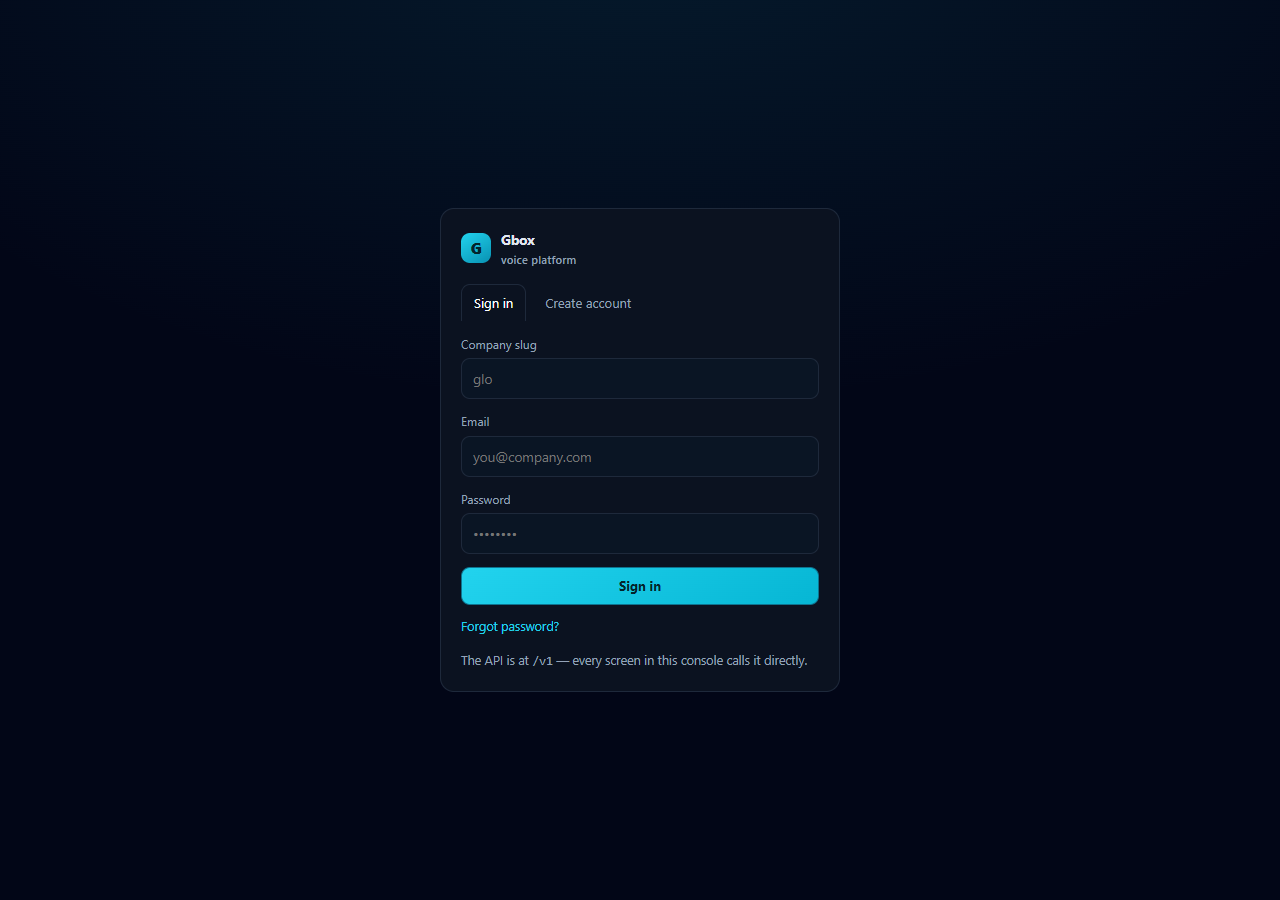
Figure 2.1 — the sign-in screen
Option
What it means
Guidance
Sign in
Enter an existing account with email and password.
Forgot the password? Use "Forgot password" — the email link works once and lets you set a new password.
Create account
Create a new workspace and its first owner account.
Company, slug, email and a password (at least 10 characters).
Sign out (bottom of the sidebar)
End the current session.
Always sign out on a shared computer.
Only the owner role sees the invoice generator and PayPal payment on the Usage screen.
3 · Overview — the state of your workspace
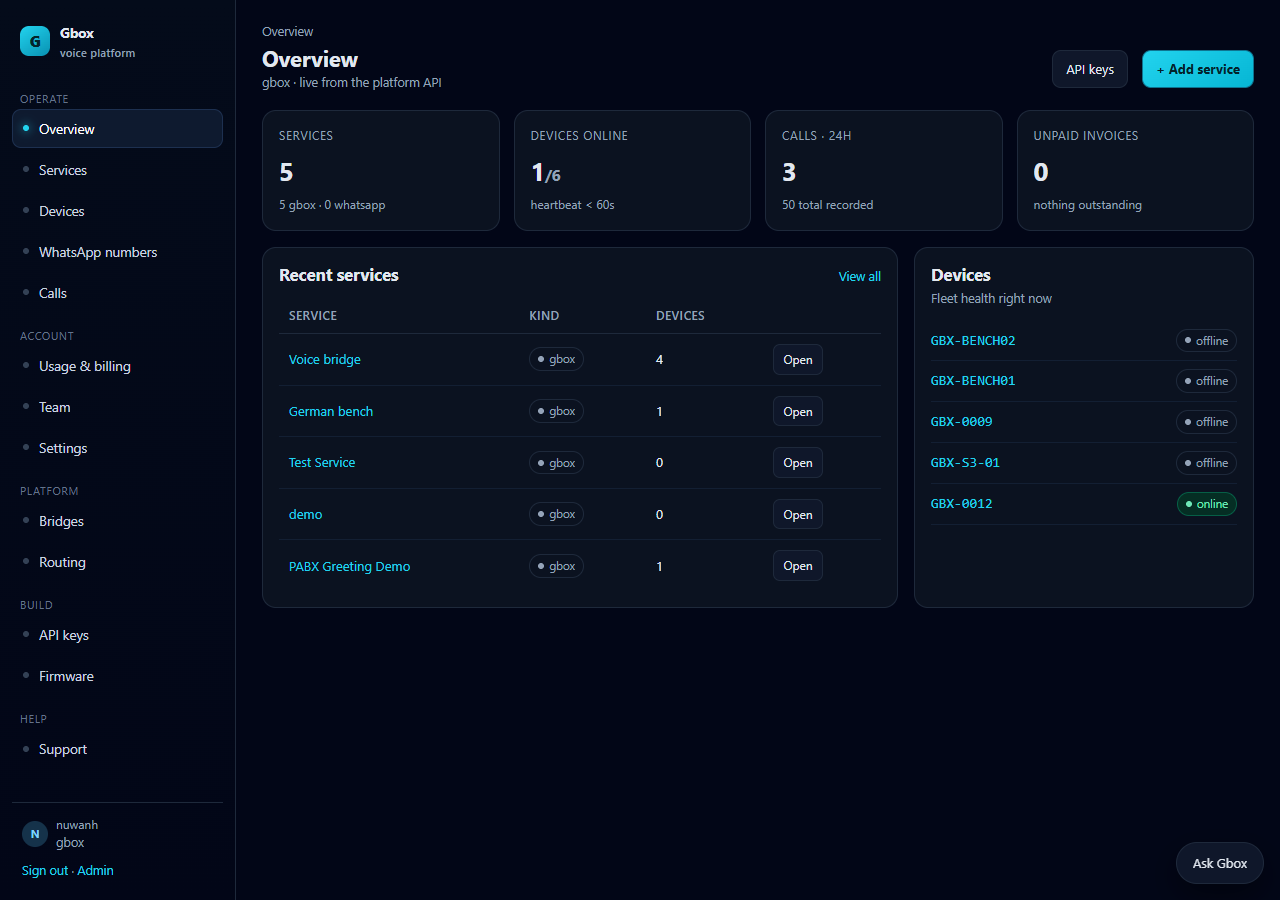
Figure 3.1 — the Overview screen
Overview shows the headline numbers for your workspace: how many services, how many devices are online,
how many calls today and the most recent calls. You can start a new service or device from here.
Section
What it means
Services card
Total services, and how many are Gbox devices versus WhatsApp numbers.
Devices card
Registered devices and how many are online right now. offline means check power and Wi-Fi.
Calls card
Calls today and the share that succeeded.
Recent calls
The latest calls; press "Open" for the full picture.
Ask Gbox (bottom right)
Ask questions about the console. It navigates the app and explains things; it never invents data.
4 · Services — configuring the AI receptionist
A service is one AI receptionist: its greeting, language, knowledge and the engine that answers. One
device can move between services; one call belongs to one service.
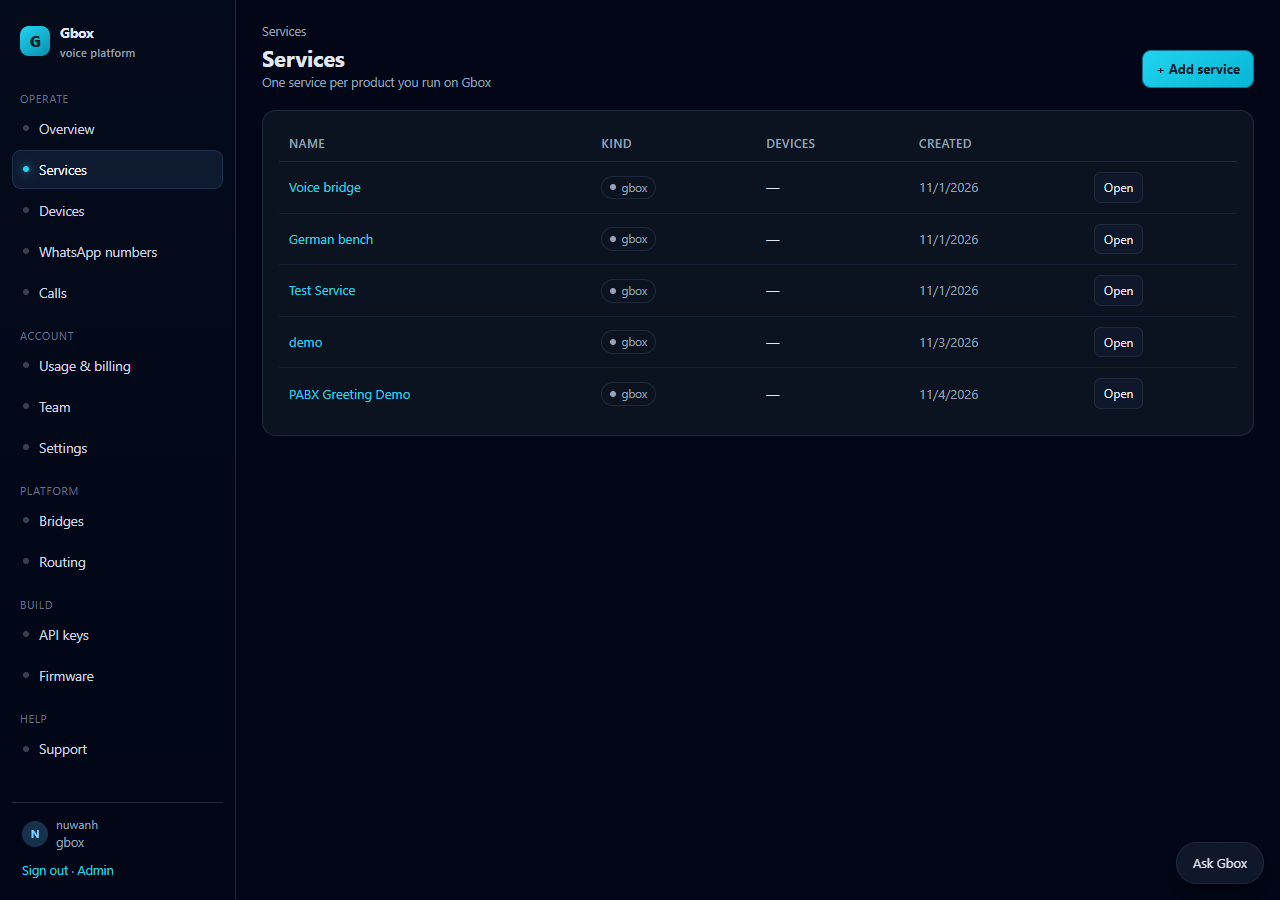
Figure 4.1 — the Services list
Option
What it means / guidance
+ New service
Create a new service (figure 4.2 below).
Name · Kind · Devices · Created
The service name, its kind, how many devices it has and when it was created.
Open
Open the service settings.
4.1 Creating a service
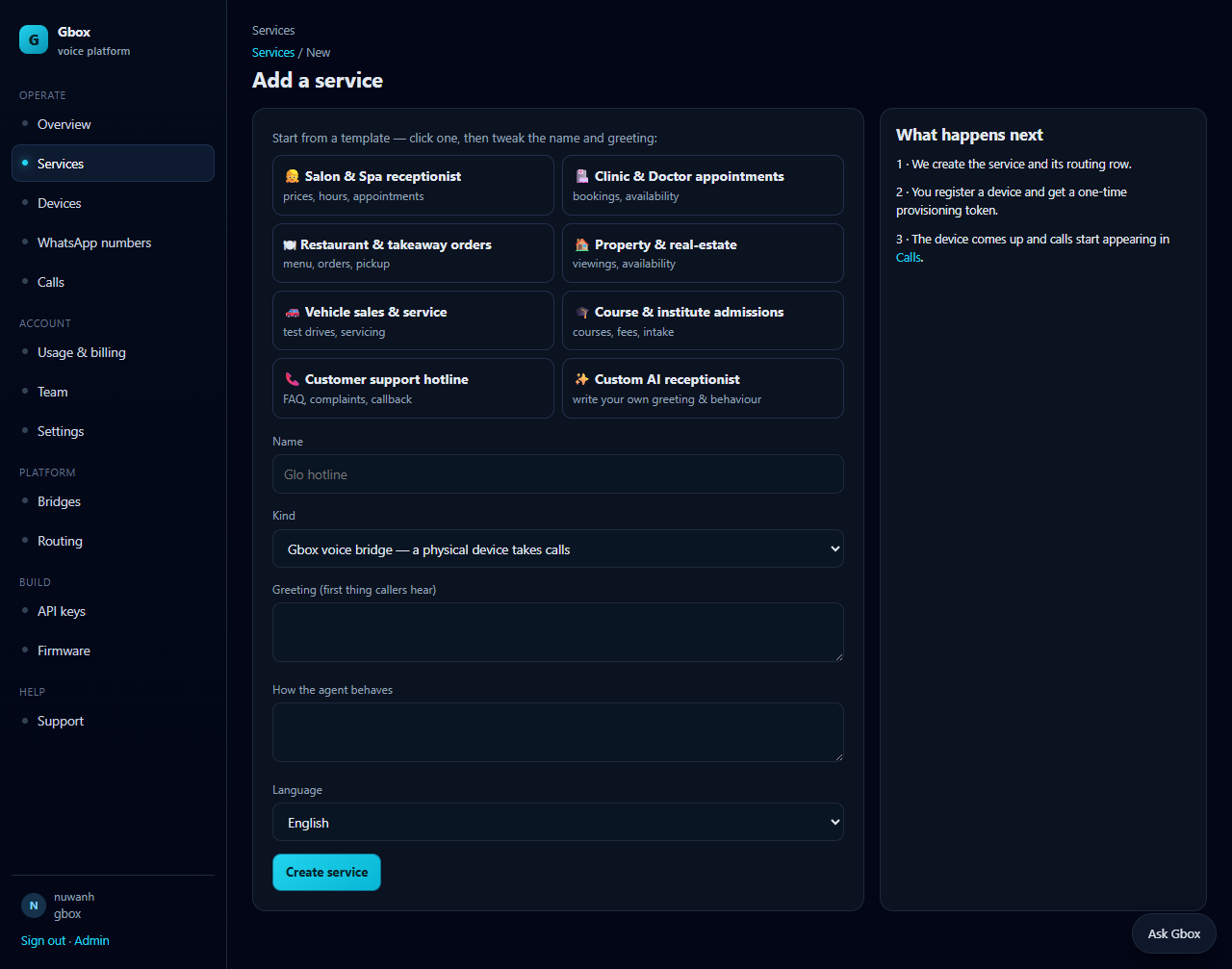
Figure 4.2 — the New service screen
Option
What it means
Guidance
Template (Salon, Clinic, Restaurant, Property, Vehicle, Institute, Support, Custom)
Fills the greeting and behaviour with one click.
Pick the closest one, then edit the words. Custom starts empty.
Name
The service name (for example, Glo hotline).
This is what appears in call records.
Kind
Gbox voice bridge — a physical device takes the calls. WhatsApp audio calls — voice calls on a WhatsApp number are answered by the AI. WhatsApp Messenger — text conversations (limited in this version).
Most deployments use Gbox voice bridge or WhatsApp audio calls.
Greeting
The first thing the caller hears.
Short, identifies the business, and says what to do next (for example: "You have reached us after hours — please leave your message").
How the agent behaves
Instructions for the AI: business, services, hours, prices, what to collect.
Write it like a briefing for a new receptionist. Say plainly that it must not invent what it does not know.
Language
Sinhala / English / Tamil.
The base language. You can tell the AI to answer in English if the caller speaks English.
Create service
Creates the service and its routing row.
Register a device next.
4.2 The service settings screen (every section)
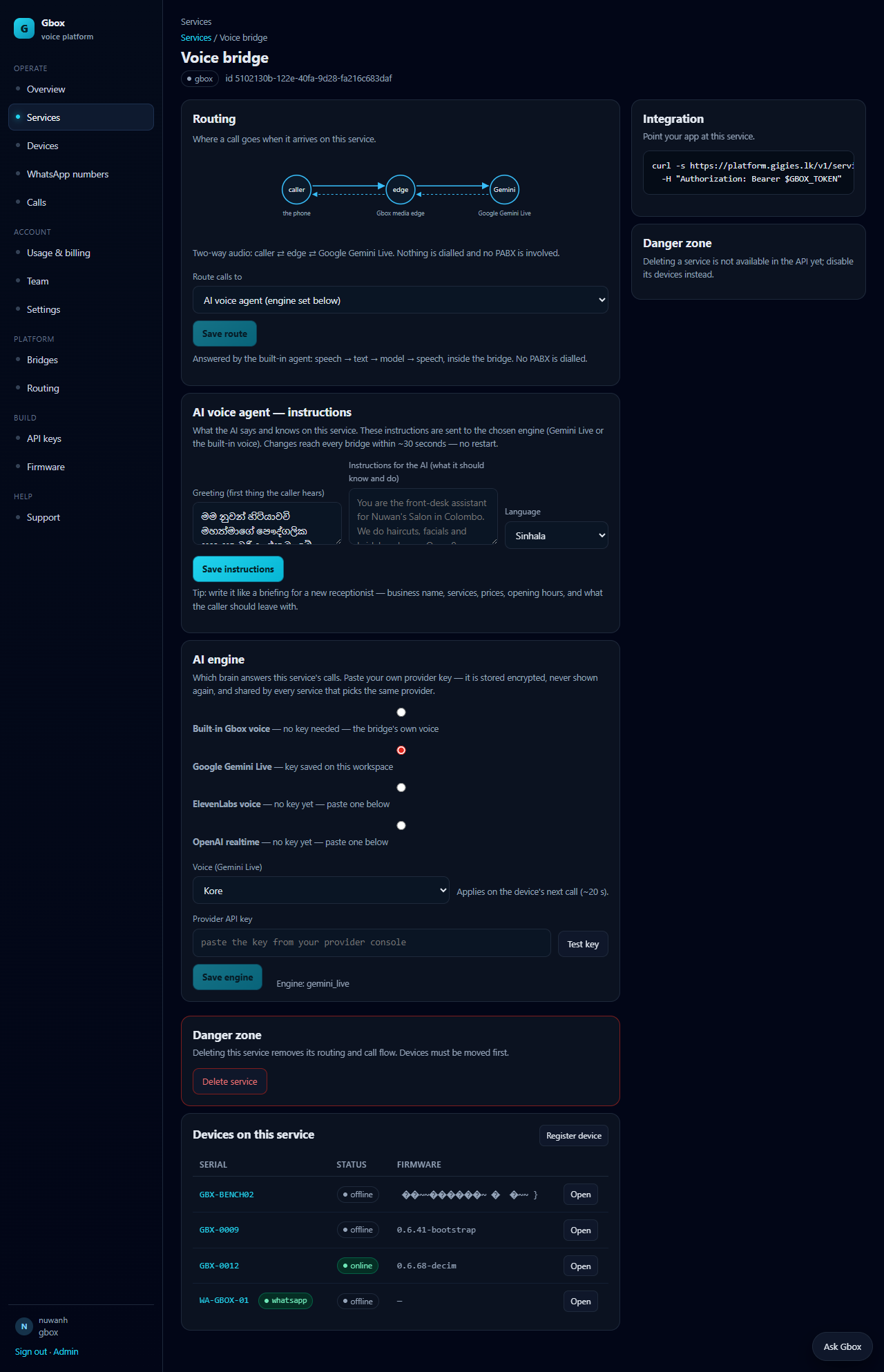
Figure 4.3 — the service settings screen
Routing — where the call goes
Option
What it means / guidance
Route calls to
AI voice agent (built-in) — the Gbox device's own voice answers; no key needed. Extension on your PABX — send the call to an extension on your PABX. SIP trunk — send the call to a SIP trunk destination. Hybrid — AI first, then the PABX extension. External AI agent — my own bot — your own bot (wss:// endpoint) owns the call.
Bot endpoint (wss://…)
Only for an external agent. Your bot's TLS WebSocket address (for example wss://bot.example.com/call).
PABX host
For PABX / SIP. IP address or hostname.
Extension
The PABX extension (for example 7000).
Codec
G.711 µ-law (common) or G.711 A-law. Match what your PABX uses.
Transport
UDP (usual) or TLS (encrypted SIP).
If the PABX is unreachable
Fail the call; Answer with the AI agent (recommended); Play a message.
Save route
Saves the changes. The button stays disabled until something changes.
Part 2 (§17) explains how to connect your own bot. The endpoint must be wss:// — public and TLS.
AI voice agent — instructions
Option
What it means / guidance
Greeting (up to 500 characters)
What the caller hears first. Write it in the service language.
Instructions for the AI (up to 2000 characters)
Business name, services, prices, hours, address, what to collect (name, phone number, reason) and how to behave. Say clearly that it must not invent what it does not know.
Language
Sinhala / English / Tamil. If the caller switches language, the instructions can tell the AI to follow them.
Save instructions
Changes reach the bridge within about 30 seconds — no restart.
AI engine — who speaks
Option
What it means / guidance
Built-in Gbox voice
No key needed; the bridge's own voice. The simplest setup.
Google Gemini Live
Realtime voice AI. Needs a Google AI Studio key. Natural, fast conversation.
ElevenLabs voice / OpenAI realtime
Selectable only when that provider has a saved key.
Voice
Only for Gemini Live — Despina, Kore, Aoede and others. Applies on the device's next call (~20 s).
Provider API key
Paste your own key. It is stored encrypted, never shown again, and shared by every service that uses the same provider.
Test key
Sends a short request to the provider to check the key.
Save engine
Enabled once an engine is selected. An engine without a key cannot be saved.
Key safety: never send a provider key by email, chat or screenshot. Paste it into the console only. If a key is revoked, paste a new one.
Other parts of the service screen
Section
What it means
Integration
A curl example for calling this service from your own app (needs an API key).
Danger zone → Delete service
Deletes the service and its routing. Move devices first. This cannot be undone.
Connect your Gbox — 4 steps
Shown when no device exists yet: power, serial, connect key, call. The service is set to the AI agent, so no PABX is needed.
Device serial + Label + Register & get key
Register the device serial and get a connect key shown once. The label is for your own reference (for example "Front desk").
Devices on this service
The devices on this service; "Open" for details.
5 · Devices — registering a box
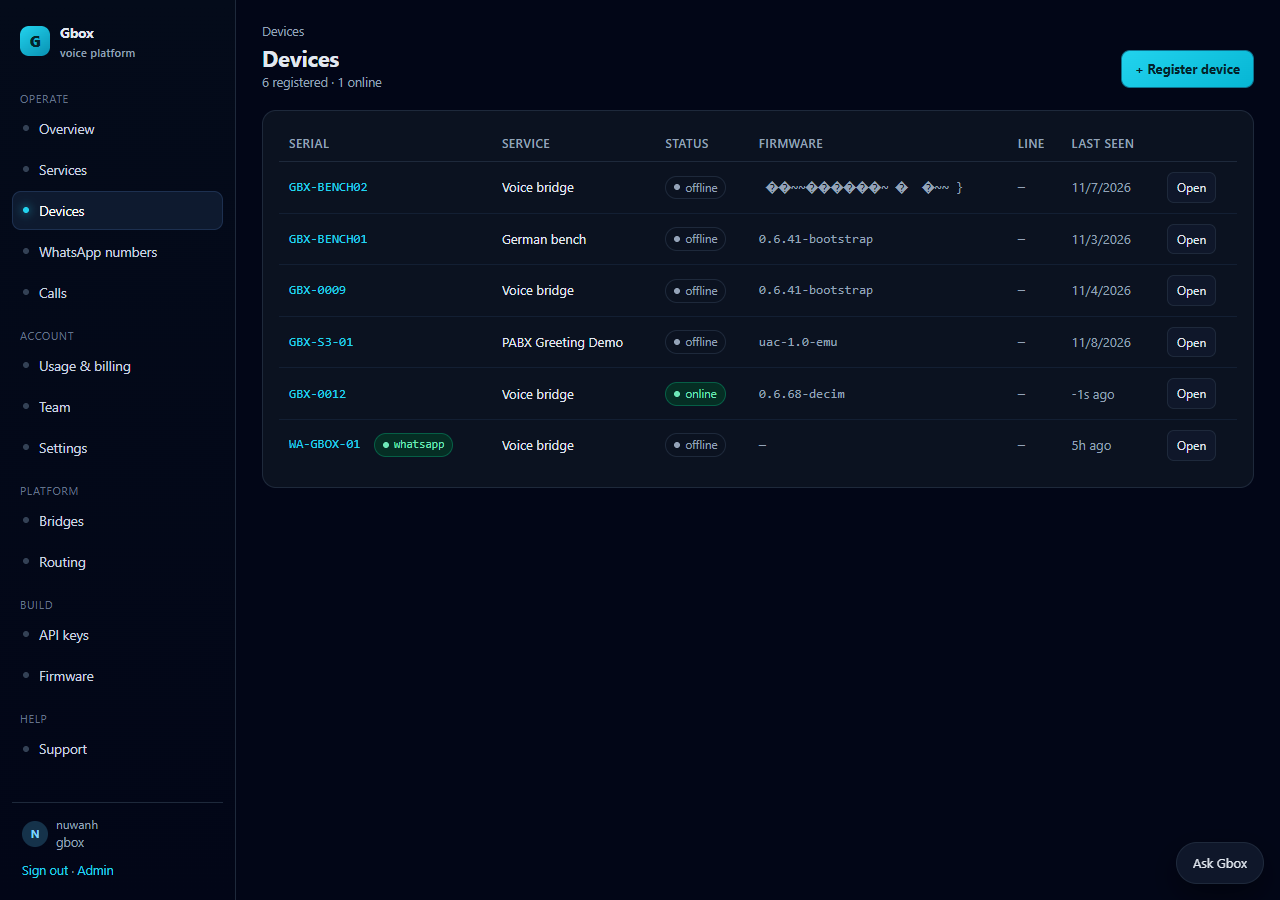
Figure 5.1 — the Devices list
Option
What it means / guidance
+ Register device
Register a new device. The serial is on the device label (for example GBX-0012).
Serial · Service · Status · Firmware · Line · Last seen
The device serial, its service, its state (online/offline/provisioning), firmware version, the SIM/WhatsApp number and when it was last connected.
Open
Open the device settings.
5.1 Device settings
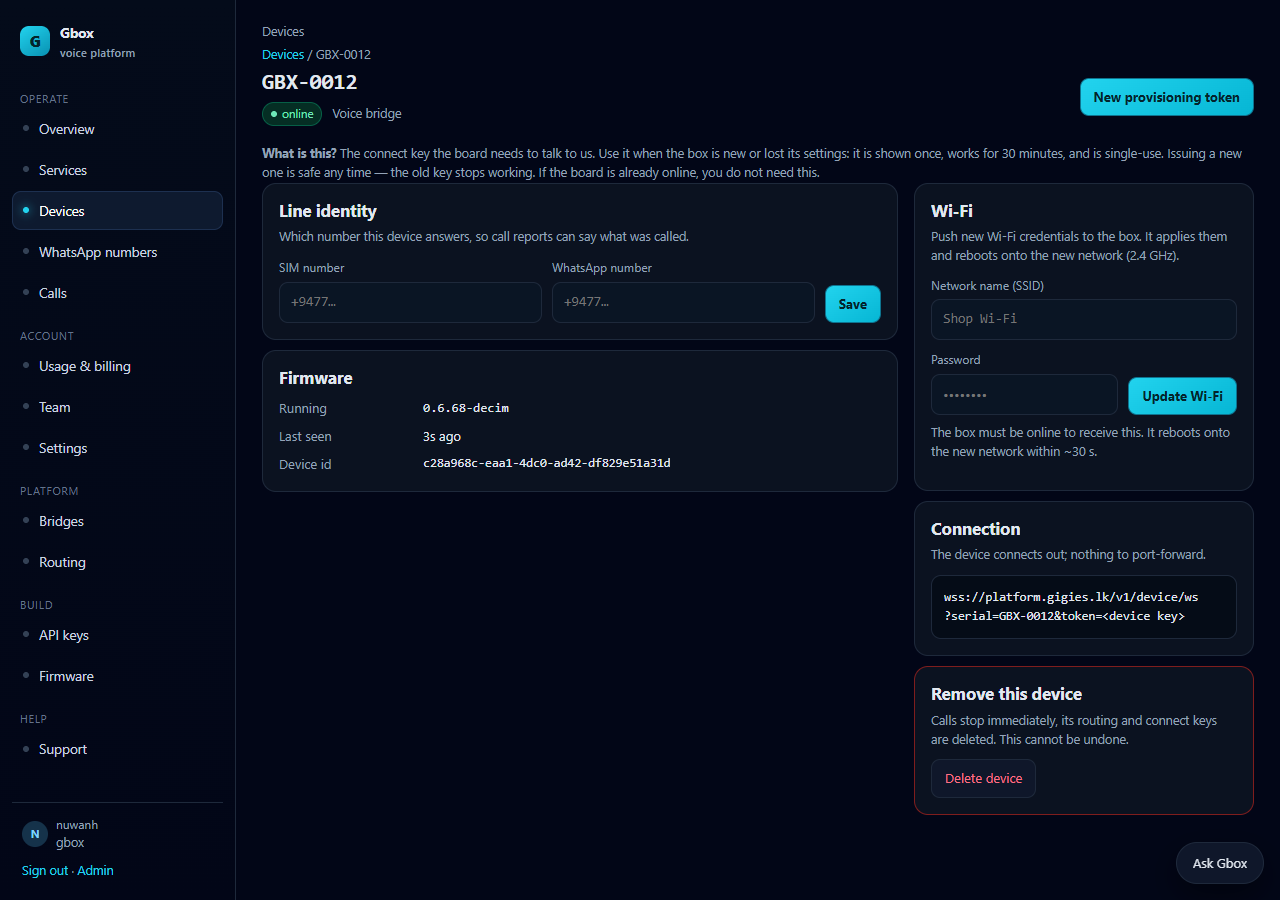
Figure 5.2 — the device settings screen
Option
What it means / guidance
New provisioning token / Give this device its token
A one-time connect key, needed when the device is new or lost its settings. Valid for 30 minutes, single use. Issuing a new one cancels the old. Not needed if the device is already online.
Line identity → SIM number
The SIM number the device answers. Lets call records show which line was called.
Line identity → WhatsApp number
The WhatsApp number attached to the device, if any.
Firmware → Running
The firmware version now running. Update it from the Firmware screen.
Last seen / Device id
Last connection and the device's unique id (send it to support).
Wi-Fi → SSID / Password
Move the device to a new network. Use a 2.4 GHz network. The device must be online to receive it; it reboots onto the new network in about 30 seconds.
Connection
The address the device connects to. The device dials out; nothing needs port-forwarding.
Delete device
Calls stop immediately; routing and connect keys are deleted. This cannot be undone.
Changing Wi-Fi: confirm the new network has working DNS and is 2.4 GHz before pushing. If it is wrong, the device can only be recovered by bringing the old network back.
6 · WhatsApp numbers — linking a number
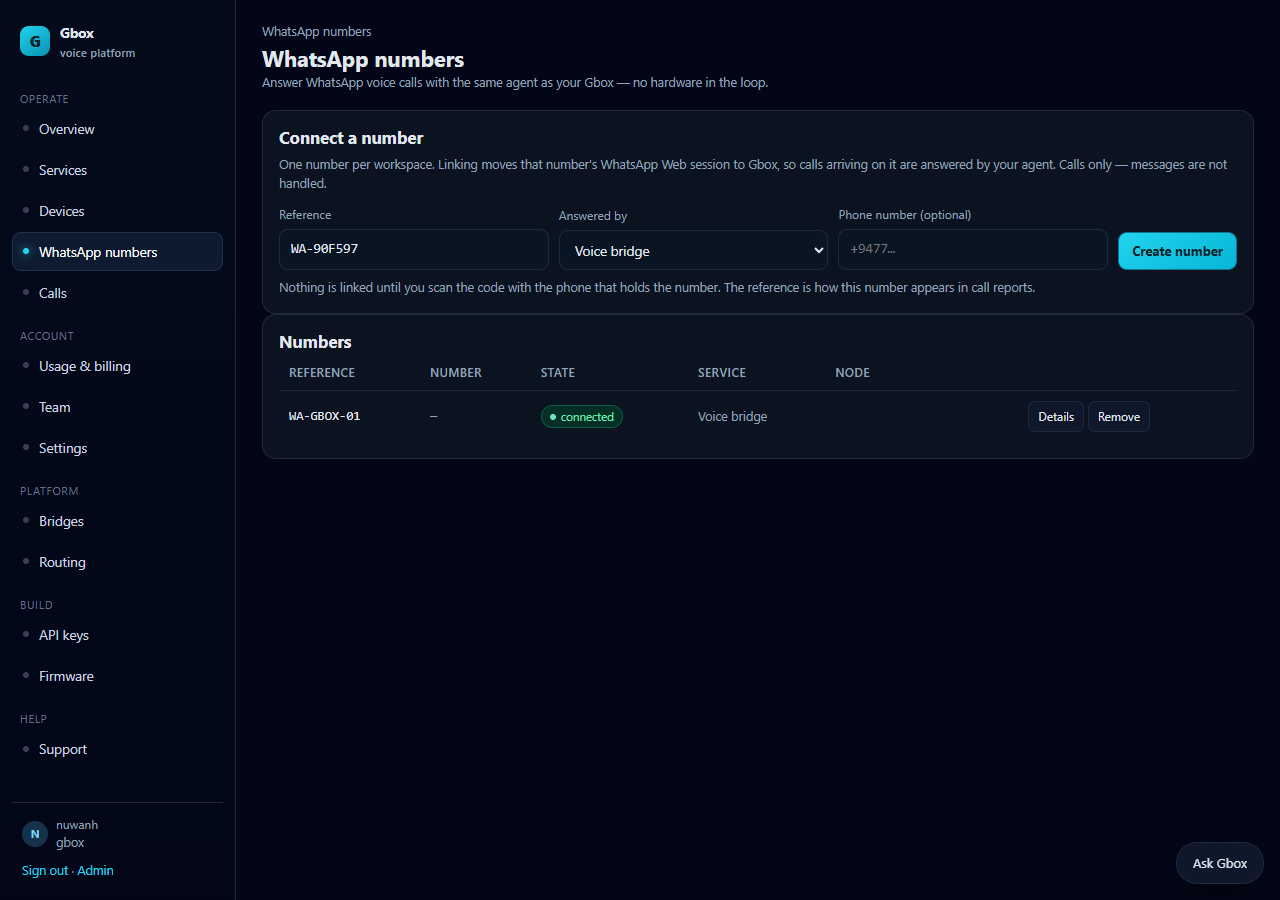
Figure 6.1 — the WhatsApp numbers screen
This lets your WhatsApp number's voice calls be answered by the Gbox AI. No device is involved.
Messages are not handled — calls only.
Option
What it means / guidance
Reference
A name to identify the number (auto-generated WA-XXXXXX). It appears in call records.
Answered by
The service that answers calls on this number. Its route decides AI, bot or PABX.
Phone number (optional)
The real number (+94…). For records only.
Create number
Creates the session; nothing is linked until you scan the QR.
Show QR / Details
The QR when unlinked; details and "Answered by" when linked.
Remove
Removes the number from Gbox. To move it to another phone, remove and link again.
State
connected — linked and working; waiting for scan — QR not scanned; unknown — the node cannot be reached.
To link: "Show QR" → on the phone that holds the number open WhatsApp → Linked devices → Link a device → scan the code.
One number per workspace. Linking moves that number's WhatsApp Web session to Gbox.
7 · Calls — call records
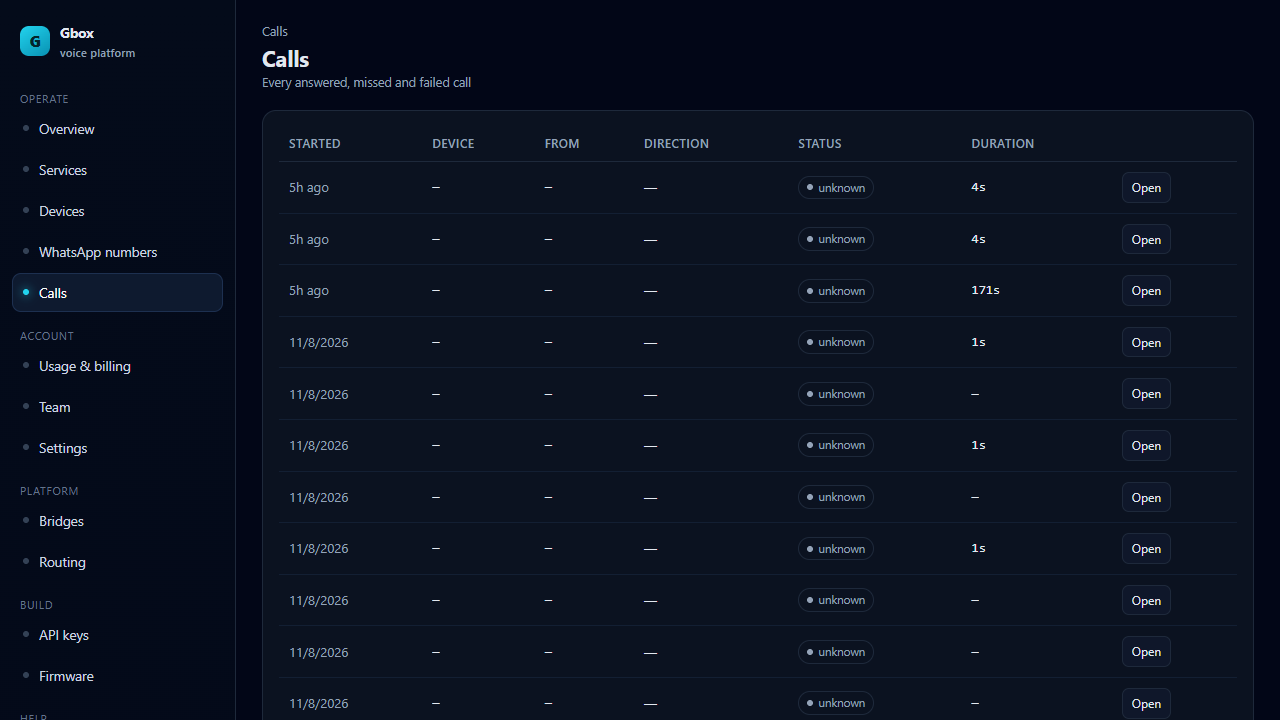
Figure 7.1 — the Calls list
Option
What it means
Started · Device · From · Direction · Status · Duration
When the call started, the device, the caller's number, the direction, the status and the length.
Open
The full timeline and raw events for that call.
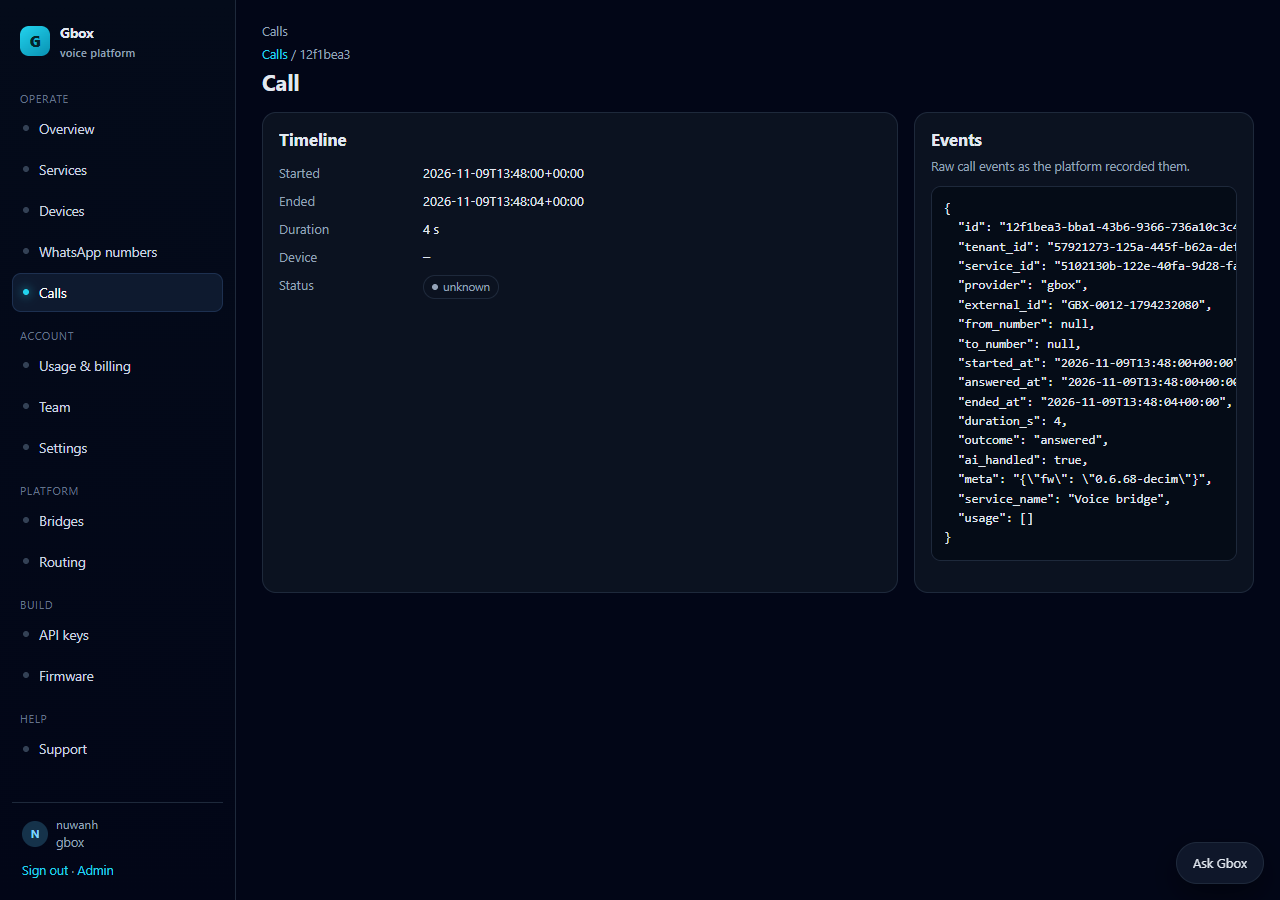
Figure 7.2 — a call's details
Timeline shows start, end, duration, device and status. Events shows the raw events the platform
recorded (ringing, answered, ended and so on). When reporting a problem, send the call id and the time from this screen.
8 · Usage & billing
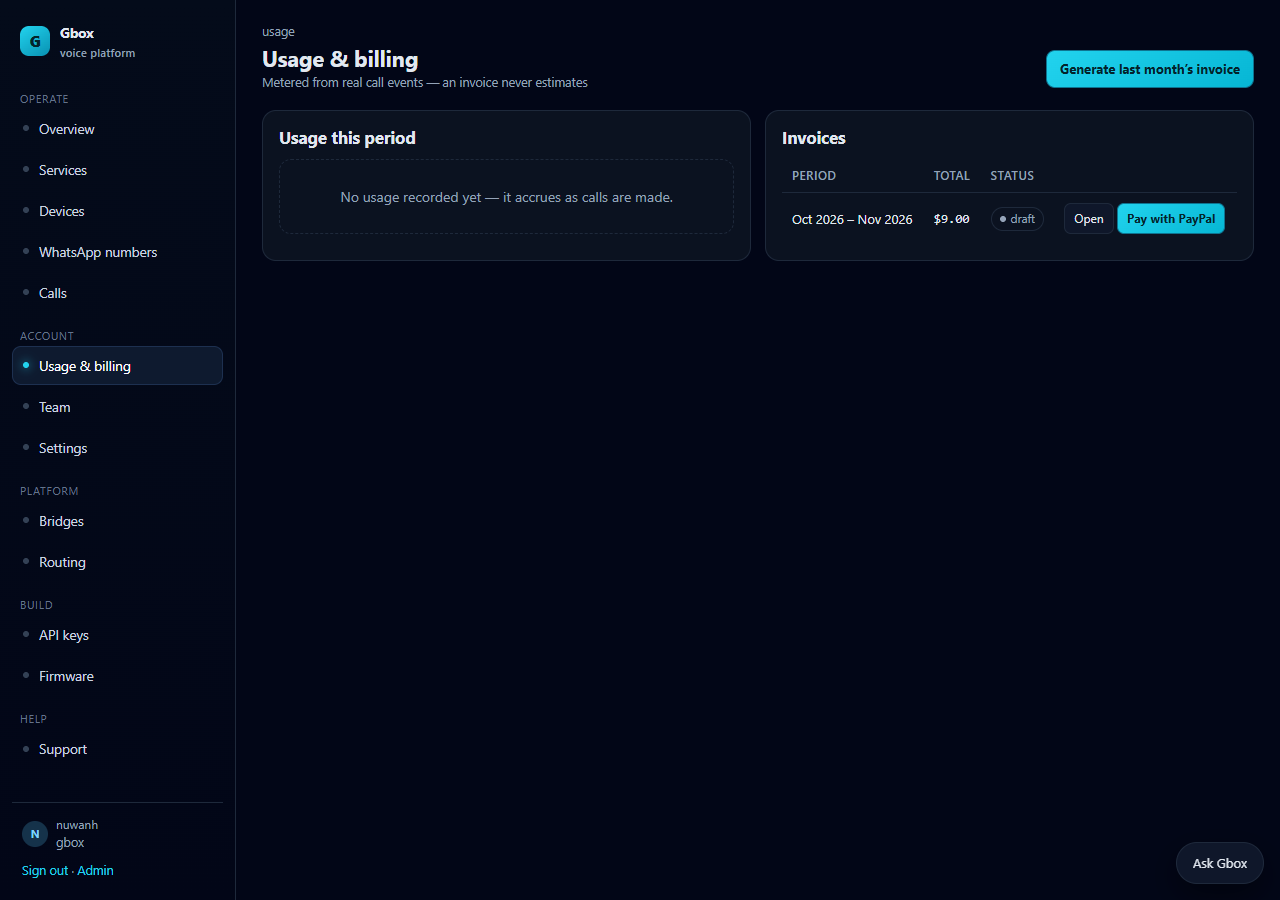
Figure 8.1 — Usage & billing
Option
What it means / guidance
Usage this period
Metered from real call events (meter, unit, quantity). It grows with calls.
Invoices
Monthly invoices; "Open" for the detail. Generate last month's invoice (owner/admin only).
Pay with PayPal
When online payment is enabled, pay an invoice through PayPal.
9 · Team, Settings and Support
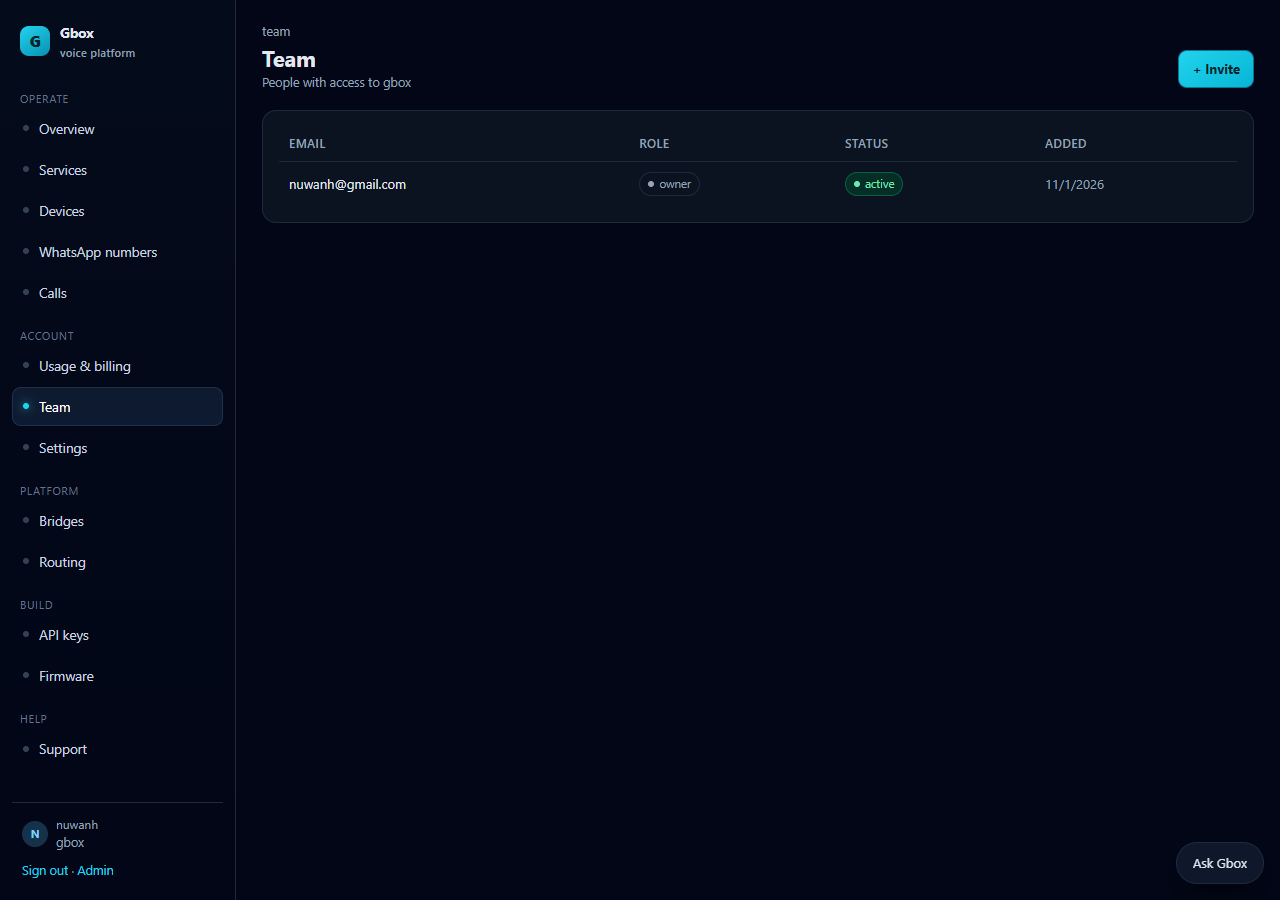
Figure 9.1 — Team
Option
What it means / guidance
+ Invite
Invite a new member by email and choose their role.
Roles
owner — everything, including billing; admin — management; member — day-to-day use.
Email · Role · Status · Added
The member's email, role, state and when they were added.
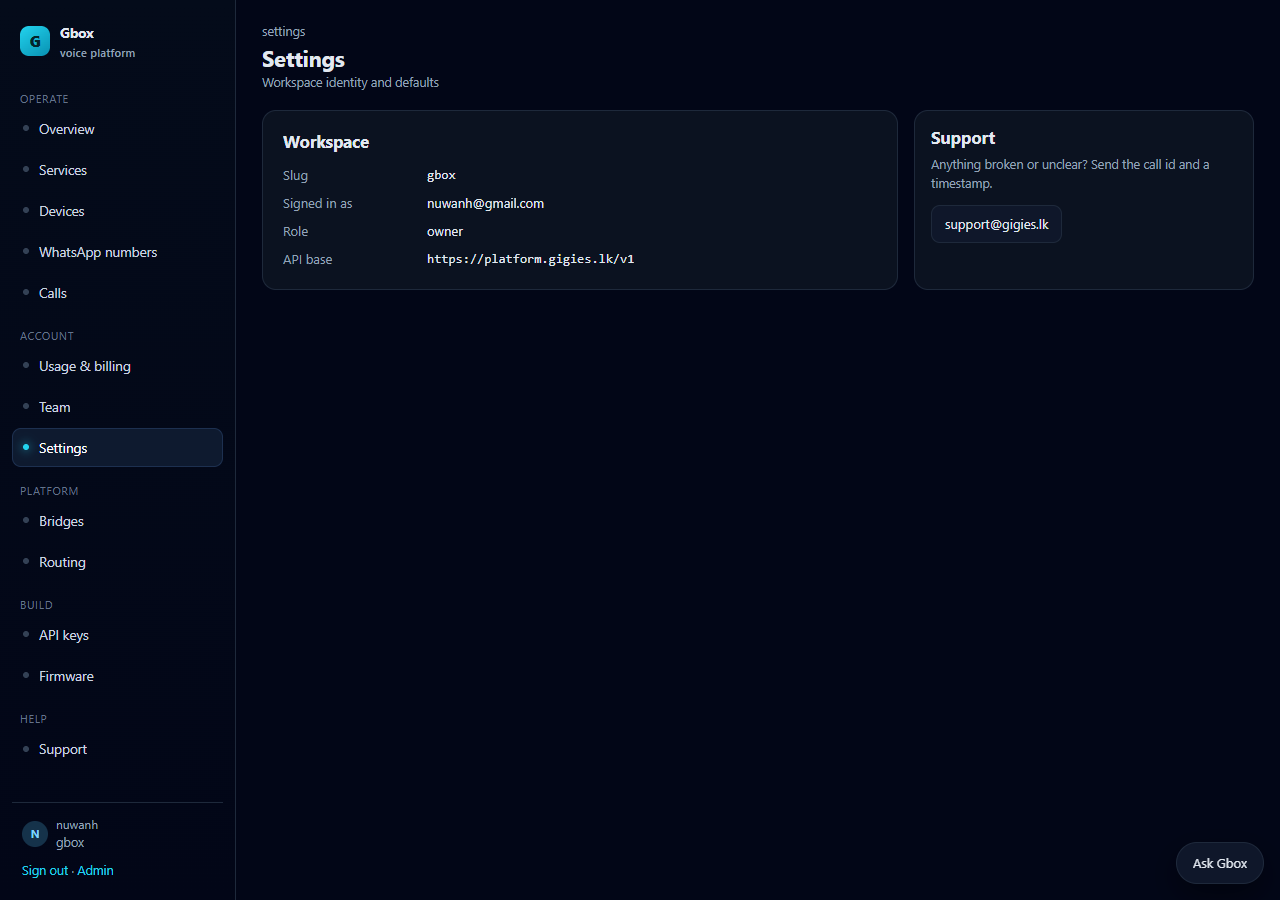
Figure 9.2 — Settings
Option
What it means
Slug · Signed in as · Role · API base
Workspace identity, your email, your role and the API address (https://platform.gigies.lk/v1).
Support card
Email support@gigies.lk.
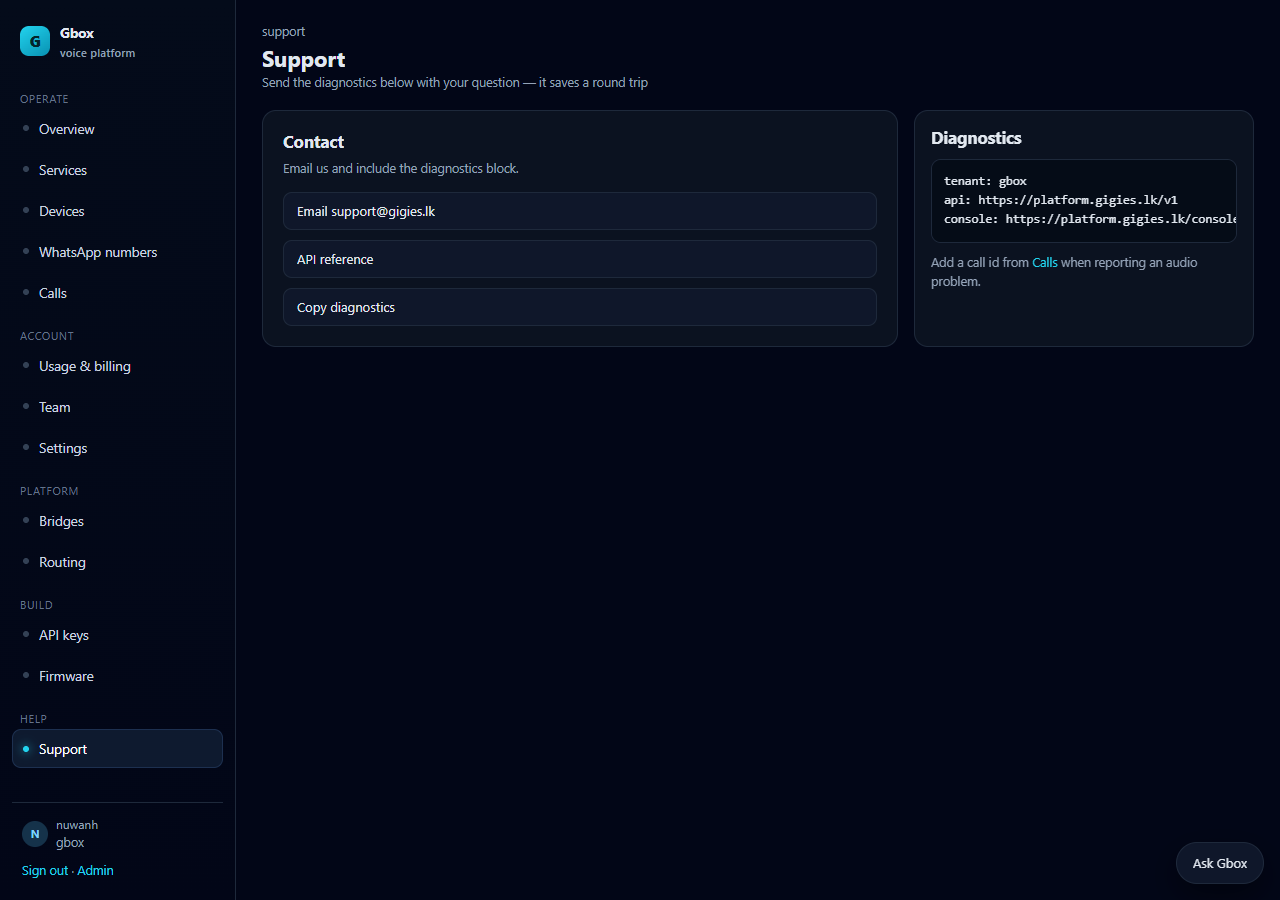
Figure 9.3 — Support
Option
What it means
Email support@gigies.lk
Send the problem, the call id and the time.
Copy diagnostics
Copies workspace, API and console details for the email.
10 · Bridges and Routing
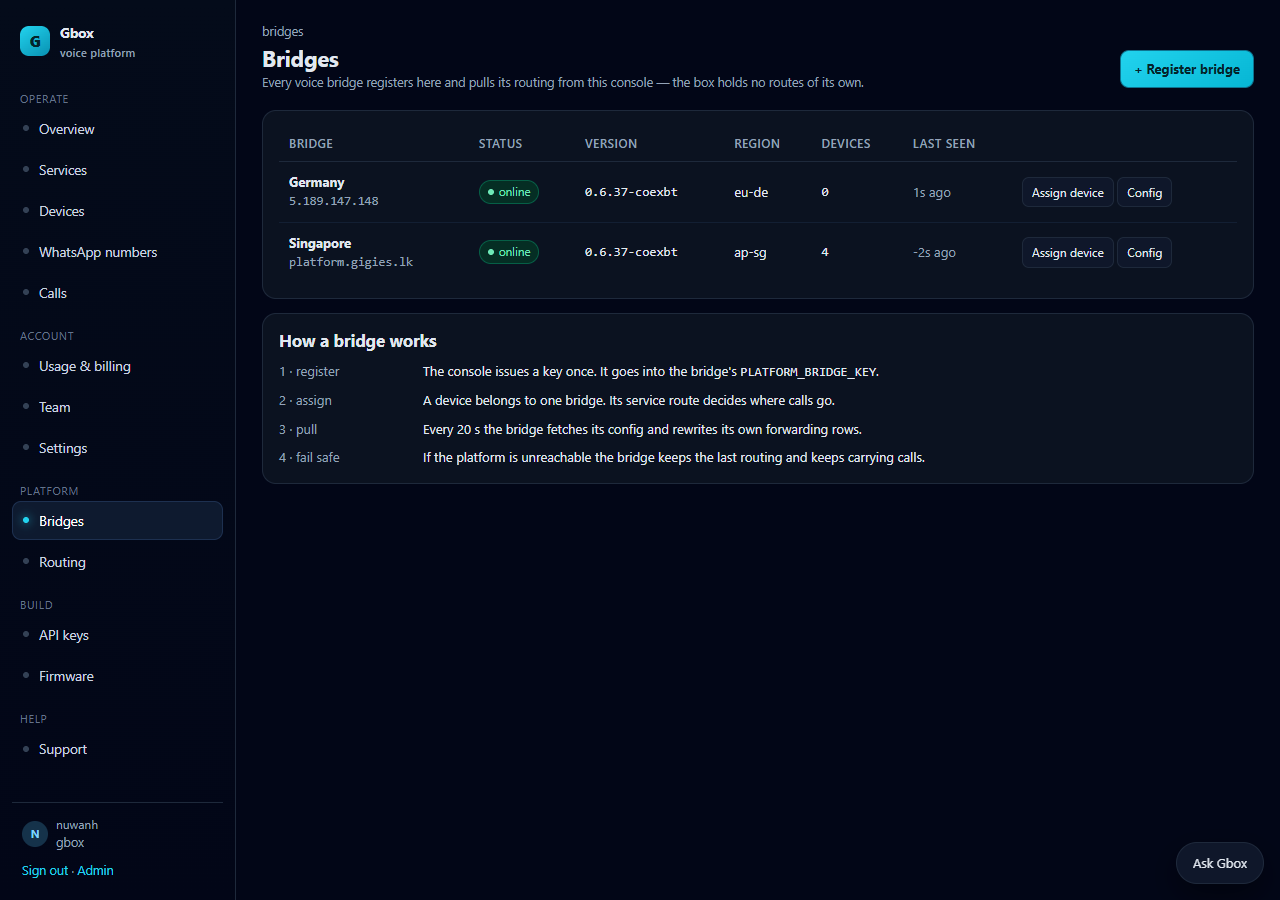
Figure 10.1 — Bridges
A bridge is the server that carries call audio into the platform, in a region. The Gbox team normally
manages it; register one here only if you run your own region.
Option
What it means
+ Register bridge
A new bridge; it receives a key once (used as PLATFORM_BRIDGE_KEY on the bridge server).
Bridge · Status · Version · Region · Devices · Last seen
The bridge name, state, version, region, device count and last connection.
Assign device
Assign a device to this bridge. One device belongs to one bridge.
Config
The bridge's current routing details.
How a bridge works: register → put the key on the bridge → assign devices → every 20 seconds the
bridge pulls its config from the platform → if the platform is unreachable it keeps the last routing and keeps carrying calls.
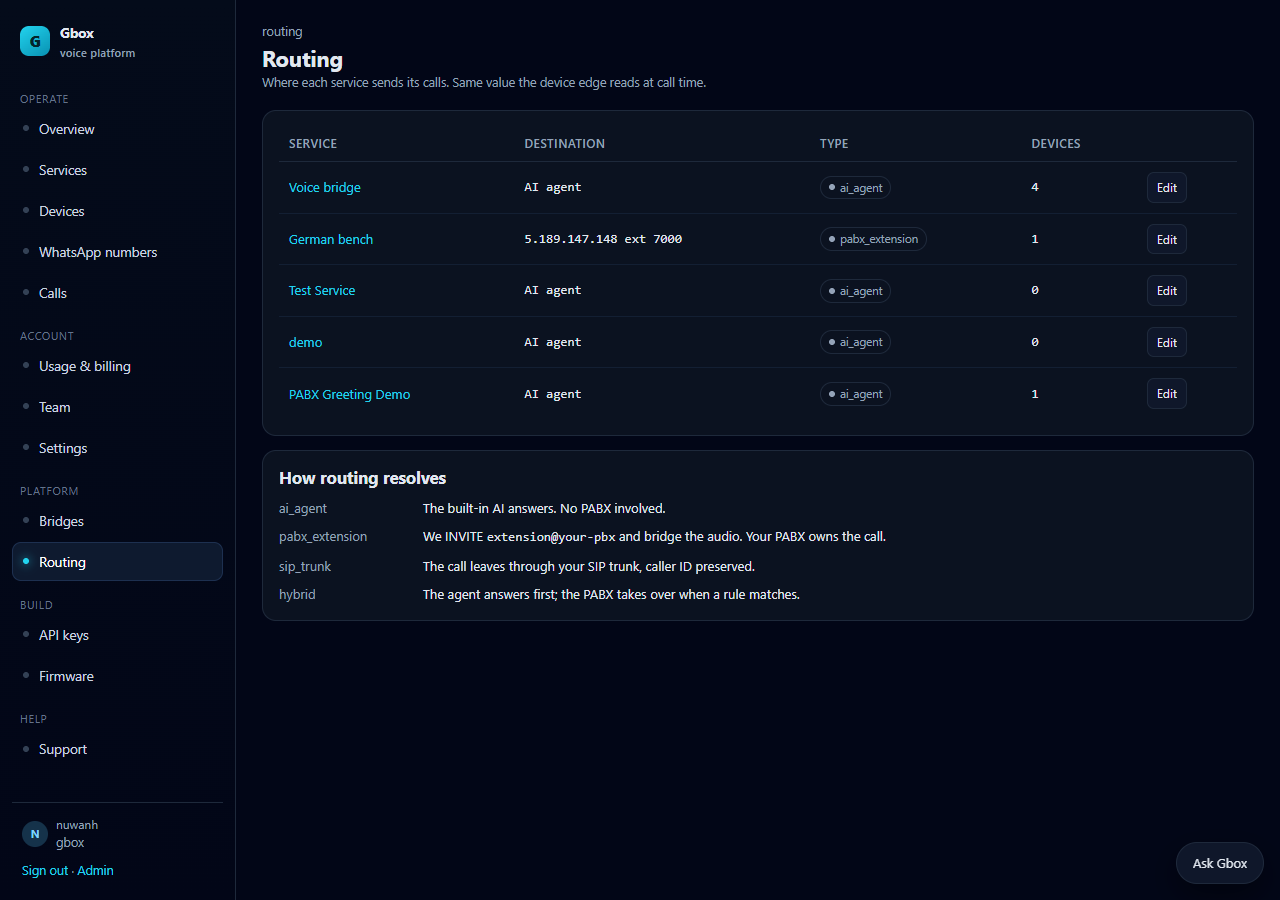
Figure 10.2 — Routing: every service's destination in one view
This screen shows where each service sends its calls (AI agent, PABX, SIP, external bot). To change one,
open that service's settings.
11 · API keys and Firmware
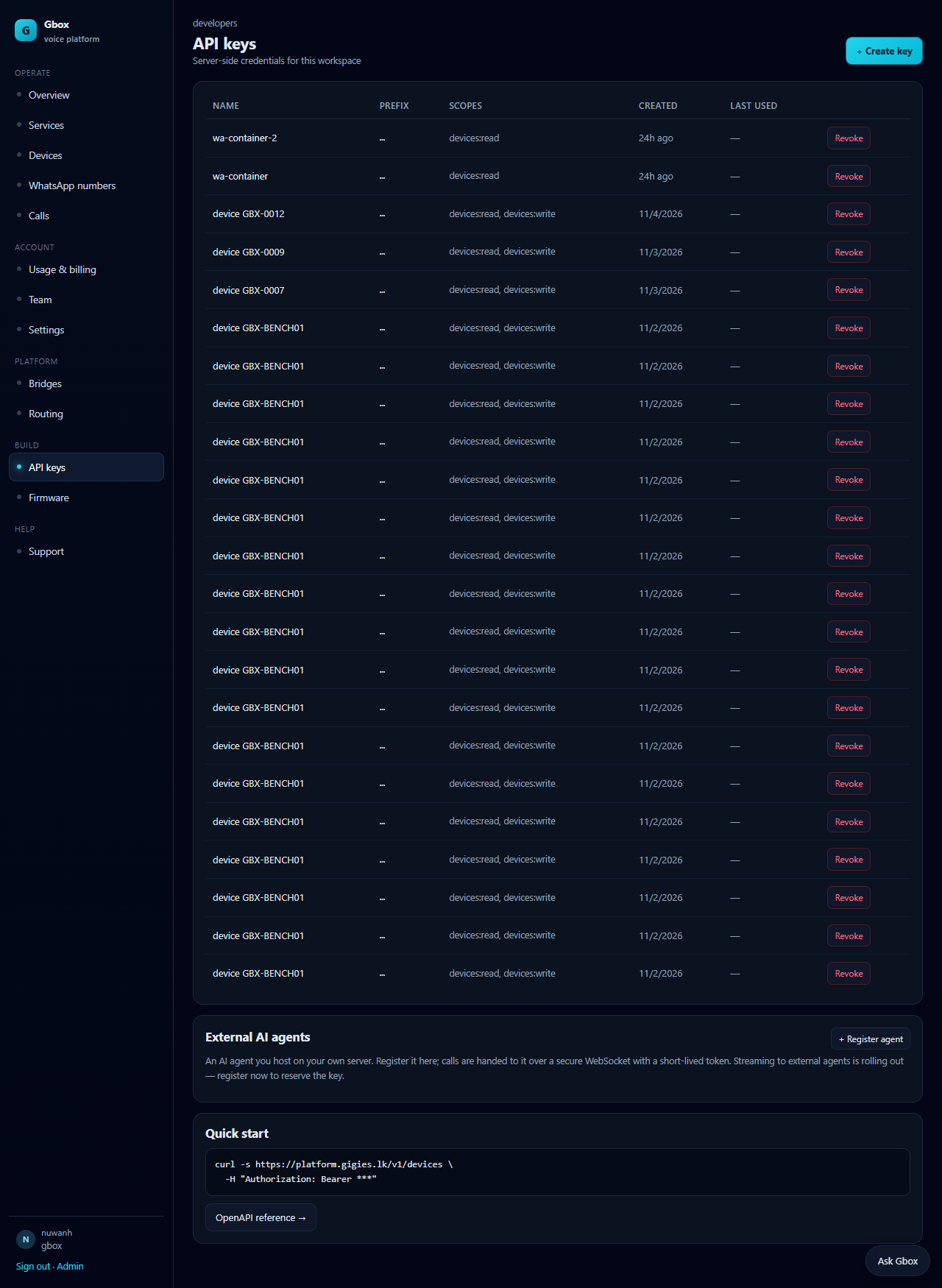
Figure 11.1 — API keys
Option
What it means / guidance
+ Create key
A key for server-side applications. It is shown once — store it securely immediately.
Name · Prefix · Scopes · Created · Last used
The key name, its first characters, permissions, creation date and last use.
Revoke
Invalidates the key immediately. Create a replacement first, then revoke, so your app keeps working.
Never put an API key in a browser bundle or mobile app. Use it only on your server.
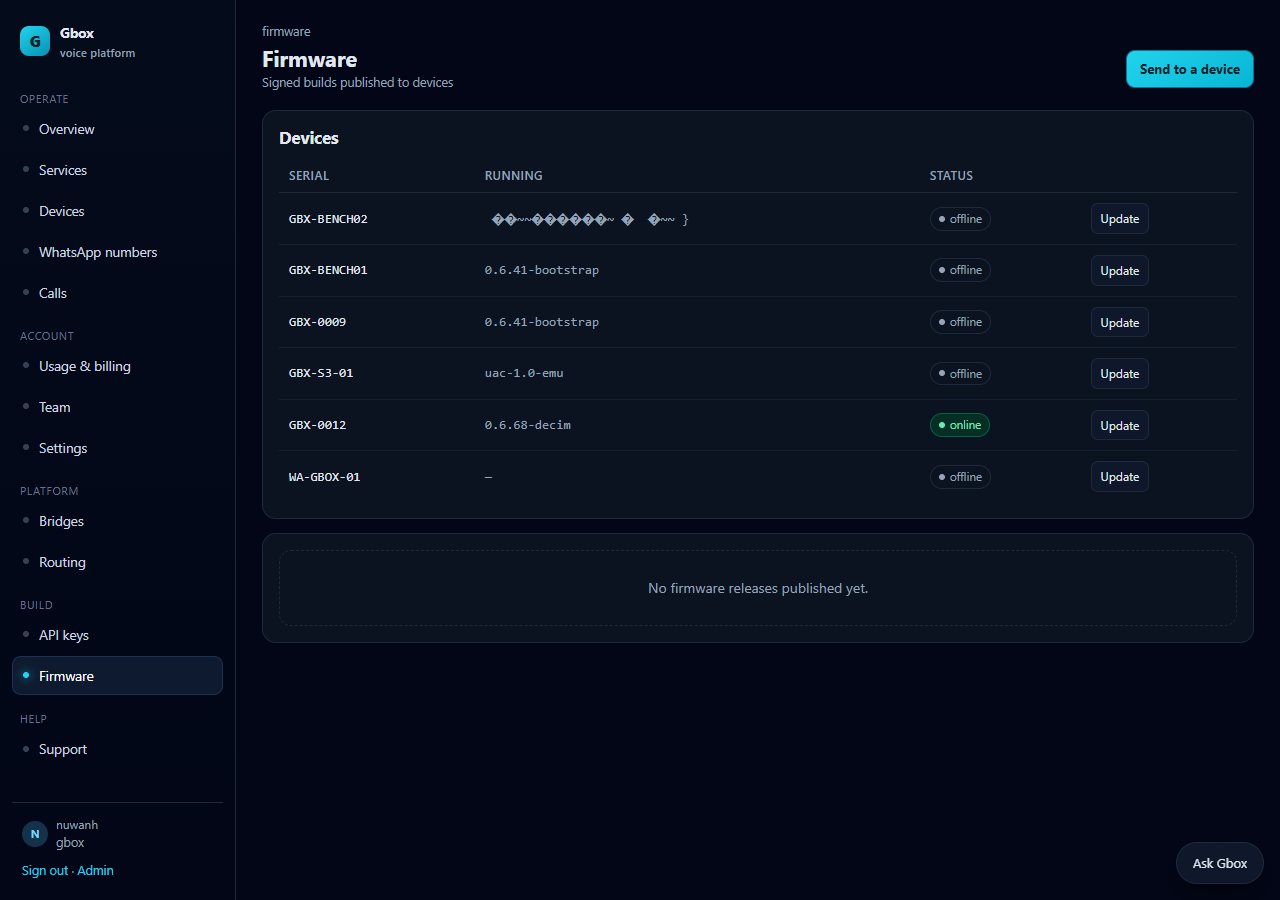
Figure 11.2 — Firmware
Option
What it means
Send to a device
Push a firmware update to a device. The device must be online.
Devices table
Serial, running version, status and "Update".
Releases
Published firmware versions (version, model, size, published).
12 · Troubleshooting
Symptom
Likely cause
What to do
The call rings but is not answered
The device is offline; the WhatsApp session is unlinked; auto-answer is not working
Check the state on the Devices screen; scan the QR again on WhatsApp numbers; power-cycle the device.
It answers but there is no voice
Engine key expired or missing; the realtime session closed
Services → AI engine → Test key; paste a new key; "Save engine". Applies on the next call.
The voice breaks or drops
Weak Wi-Fi; a 5 GHz network; the device is far from the router
Move it to a 2.4 GHz network; move it closer; push the Wi-Fi change while the device is online.
The device shows offline
No power; wrong Wi-Fi/DNS; it was moved to a new network
Check power and the LED; bring the old Wi-Fi back; check Last seen on Devices.
WhatsApp is "waiting for scan"
The QR was not scanned or expired
"Show QR" → scan from the phone that holds the number. One number per workspace.
API returns 401 Unauthorized
The key was revoked or the JWT expired
Create a new key on API keys; for a JWT, sign in again.
No invoice
Usage has not accrued, or no invoice was generated
Usage → Generate last month's invoice (owner/admin).
13 · Status and badges
Badge
What it means
online / connected
The device or WhatsApp session is active and can take calls.
offline
The device is not connected to the platform.
provisioning / waiting for scan
Registered but not fully connected yet.
draft / published
Configuration state.
paid / unpaid
Invoice payment state.
Everything a developer needs to integrate with Gbox: authentication, the API map, how routing
resolves an engine per call, the WebSocket contract for your own agent, webhook signing, and copy‑paste
prompts for an AI IDE.
14 · Authentication and conventions
Item
Value
Base URL
https://platform.gigies.lk/v1
Auth
Authorization: Bearer <api_key> — API keys are created in API keys and are server-side only. Console JWTs also work for UI calls.
Content type
application/json; all timestamps are ISO‑8601 UTC; ids are UUIDs (WA sessions use their reference, e.g. WA-GBOX-01).
Lists
{ "data": [ … ] }
Errors
{ "error": { "code", "message", "details", "request_id" } } — log request_id when reporting a problem.
Idempotency
Creating a device with an existing serial returns the existing row (or 409) — treat that as success for provisioning scripts.
Never expose an API key in a browser bundle, mobile app, screenshot or support ticket. A leaked key must be revoked immediately; revoke first, create a replacement second.
GET/POST /webhooks POST /webhooks/{id}/test GET /webhooks/{id}/deliveries
Signed outbound events and delivery history.
GET /models · GET /providers
Model catalog and provider key state.
16 · Routing and engine resolution
Each call is resolved fresh from the service: route mode → engine → voice → instructions. There is no
device-side configuration to restart, and a change applies to the next call (instructions propagate to bridges in ~30 s).
Route mode
Behaviour
ai_agent
The platform's engine answers (built-in, Gemini Live, ElevenLabs or OpenAI realtime).
pabx_extension
Forward the call to an extension on your PABX (G.711, UDP or TLS).
sip_trunk
Send the call to a SIP trunk destination.
hybrid
AI answers first, then hands off to the PABX extension.
external_agent
Your own bot owns the audio over a WSS endpoint (next section).
Engine rules:builtin needs no key. Every other engine requires a saved provider key; a request to save an engine without a key is rejected with a validation error (422). The key is encrypted, never returned, and shared by every service using that provider.
17 · Bring your own agent (WSS contract)
Set the service route to external_agent and give a public wss:// endpoint.
On each call the media side connects to that endpoint with a short‑lived bearer token and opens the conversation.
// 1. media side → your endpoint (headers: Authorization: Bearer <token>)
{ "type": "start", "v": 1, "serial": "WA-GBOX-01", "session": "…",
"source": "virtual_wa",
"uplink": { "rate": 16000, "format": "pcm16", "frame_bytes": 640 },
"downlink": { "rate": 16000, "format": "pcm16", "frame_bytes": 640 } }
// 2. your endpoint → media side (accept or refuse)
{ "type": "ready", "engine": "my-bot", "voice": "sanuki" }
{ "type": "error", "reason": "busy" }
// 3. audio: raw binary frames both directions — PCM16 LE, mono, 16 kHz, 20 ms (640 B)// 4. call end: the media side sends {"type":"end"} and closes; stop work on close
Consideration
What to do
Token lifetime
5 minutes, minted per call, sent as a bearer header. Treat it as the caller's identity; never log it. A new call means a new token.
TLS and reachability
Public wss:// with a valid certificate; no self‑signed certs (the media side will not connect).
Pacing
Send 20 ms frames (640 B) at 50 fps. Do not burst a whole reply; the phone's jitter buffer plays late audio as “breaking”.
Latency budget
Aim for first audio within ~1.5 s of the caller stopping. Pre‑synthesise greetings; stream sentences as they are ready.
Echo and barge‑in
Echo cancellation is on the device; still ignore the first ~300 ms after your own speech and stop playback when the caller talks over you.
Idle sessions
Realtime providers close sessions after a period without client audio. Send a silent frame or a keepalive while the caller is quiet, and reconnect in the same call if the provider closes.
Reconnects
A dropped socket must not leave the caller in silence: reconnect with backoff (250 ms → 2 s, max 3 tries) and resume, or end the call cleanly.
Failure isolation
Never block the audio thread on HTTP/DB calls; queue and fail fast. One call's failure must not affect other calls.
Data protection
Record only what you need; the token and audio are personal data. Encrypt at rest, set retention, and never echo a caller's number back as “I know it”.
18 · Webhooks, keys and SIP considerations
Webhooks
POST /v1/webhooks          { "url": "https://your.app/gbox/events", "events": ["call.started","call.ended"] }

// every delivery carries a signature header
X-Gbox-Signature: t=1762700000,v1=hex(hmac_sha256(secret, f"{t}.{raw_body}"))

// verify: recompute over the RAW body, compare in constant time, reject if |now - t| > 300 s
Consideration
What to do
Verify before parsing
Read the raw bytes, verify X-Gbox-Signature, then JSON‑parse. A parsed object cannot be re‑signed identically.
Replay window
Reject timestamps older than 5 minutes; store event ids and make handlers idempotent — retries are guaranteed.
Retries
Non‑2xx responses are retried with backoff. Return 200 quickly and process asynchronously.
Secret
Per endpoint; rotate by adding the new endpoint, switching traffic, then deleting the old one.
SIP / PABX
Consideration
What to do
Codec
G.711 µ‑law or A‑law only; no transcoding for G.729/Opus. Match your PABX.
Transport
UDP for LAN; TLS when signalling crosses the internet. Media stays on the negotiated RTP path.
Fallback
Set “If the PABX is unreachable” to Answer with the AI agent so a dead PBX does not lose calls.
Extensions
One extension per concurrent call; hunt groups are a PABX feature, not a Gbox one.
19 · Prompts for your IDE
Paste one of these into Cursor / Claude Code / Copilot Chat. Replace the placeholders, keep the contract
sections intact, and ask the model to write tests first.
Prompt A — Node.js agent server for external routing
Build a Node.js 20 service that implements the Gbox external-agent WebSocket contract.

Server:
- Node 20, TypeScript, ws library, listens on wss://0.0.0.0:8443/call behind a TLS terminator.
- On connection: read Authorization: Bearer <token>. Reject with a JSON
  {"type":"error","reason":"unauthorized"} if the token is missing or not a JWT with an exp in the future.
- Expect the first JSON message: {"type":"start","v":1,"serial","session","uplink":{rate:16000,format:"pcm16",frame_bytes:640},"downlink":{...}}.
  Reply {"type":"ready","engine":"my-bot","voice":"sanuki"}.
- Then binary frames arrive: PCM16 LE mono 16 kHz, 640 bytes = 20 ms. Stream them into the speech
  pipeline and stream reply audio back as the same binary format, 640 bytes every 20 ms (setInterval-based
  pacer, never burst).
- If nothing to say, send 640 zero bytes every 20 ms (silence) so the provider does not time out.
- On {"type":"end"} or socket close, stop the pacer and release the call.

Requirements:
- Per-call state object keyed by session; no shared mutable audio buffers.
- Backpressure: if the socket is not writable, drop queued downlink frames instead of buffering forever.
- Config from env: PORT, TLS_CERT, TLS_KEY, STT_KEY, TTS_KEY.
- Log one line per call: session, serial, duration, frames in/out, first-audio latency.
- Write vitest tests for the frame maths (640 B = 20 ms) and for the token check.

Do not log the bearer token or raw audio.
Prompt B — Python agent with FastAPI + websockets
Implement a Python 3.12 Gbox external agent using FastAPI and the websockets package.

- Endpoint: wss://your-host/v1/agent/call, bearer token in the Authorization header.
- Handshake: receive {"type":"start",...}; answer {"type":"ready","engine":"py-bot"}.
- Audio in: 16 kHz PCM16 mono, 640-byte frames (20 ms). Convert to the format your STT needs
  (16 kHz raw PCM works with faster-whisper).
- Audio out: 24 kHz TTS output → resample to 16 kHz → chunk into 640-byte frames → send on a monotonic
  20 ms schedule using asyncio (next_t += 0.02; sleep(max(0, next_t - now))).
- Silence keepalive: if no downlink frame was sent for 3 s, send one silent frame.
- Barge-in: monitor inbound RMS; if the caller speaks while you are playing, stop the current reply.
- Reconnect: if the socket drops, retry up to 3 times with 0.25/0.5/1 s backoff, then close the call.

Acceptance criteria you must verify locally with a fake client:
1. A 10 s session produces exactly ~500 downlink frames and ~500 uplink frames.
2. First reply audio leaves within 1.5 s of the first voiced uplink frame.
3. No frame is larger or smaller than 640 bytes.
4. Memory stays flat over a 10-minute simulated call.

Include a pytest that drives the fake client and asserts the four points above.
Prompt C — Webhook receiver with signature verification
Create a production-ready webhook receiver for Gbox events.

- POST /gbox/events on Node 20 (Express) or Python (FastAPI).
- Read the RAW body (do not parse before verifying).
- Header: X-Gbox-Signature: t=<unix>,v1=<hex hmac_sha256(secret, "<t>.<raw_body>")>
- Verify: parse t and v1, reject if |now-t| > 300 s, recompute HMAC in constant time, else 401.
- Deduplicate by event id in Redis (24 h TTL); return 200 immediately and process in a worker queue.
- Handle call.started, call.ended, device.online, device.offline. For call.ended store
  {call_id, device_serial, duration_s, status} in Postgres.
- Retries: assume every event can arrive twice; make handlers idempotent.
- Provide a /health endpoint and structured JSON logs with request id.

Add tests: valid signature, expired timestamp, tampered body, duplicate event.
Prompt D — Fleet health dashboard
Build a read-only fleet dashboard for Gbox using its REST API (base https://platform.gigies.lk/v1,
Authorization: Bearer $GBOX_API_KEY).

- Fetch /devices and /calls every 30 s. Show a table: serial, service, status, firmware, last seen,
  calls today, average duration. Sort offline devices first.
- Colour: green = online, amber = provisioning or no call in 24 h, red = offline > 15 min.
- Cards: online/total, calls today, average duration, devices with no calls in 7 days.
- Clicking a device opens its recent calls from /calls (filter client-side by device_serial).
- Stack: Next.js or plain Vite + React, server-side proxy so the API key never reaches the browser.
- Empty state must explain how to register the first device. No fake data anywhere.

Write the API proxy route first, then the table, then the cards. Include a loading skeleton and an
error banner that shows the API error.request_id.
Prompt E — Call analytics export
Write a scheduled job that exports Gbox call analytics to CSV and Google Sheets.

- Every night at 01:00 Asia/Colombo: GET /v1/calls?limit=1000 (paginate), map to
  date, device_serial, service_name, direction, status, duration_s, caller_number_mask.
- Mask caller numbers: keep the country code and the last 2 digits only.
- Write one CSV per day to ./exports/YYYY-MM-DD.csv and append rows to a Google Sheet tab "calls".
- Use upsert semantics on call_id so a re-run does not duplicate rows.
- Handle 429 with exponential backoff; log counts and the slowest request.
- Provide a --dry-run flag that prints the first 5 rows only.

Tests: pagination across 2500 calls, masking, idempotent re-run. No secrets in the repo; read the key
from GBOX_API_KEY.
Prompt F — Load and latency harness
Create a load-test harness for our Gbox external agent endpoint (wss://.../call).

- Spawn N concurrent WebSocket clients (N configurable, default 20).
- Each client performs the start handshake, streams 20 s of a supplied 16 kHz PCM file as 640-byte
  frames at 50 fps, and records: handshake ms, first downlink frame ms, frames in/out, bytes in/out,
  dropped frames (when the socket is not writable), close code.
- Ramp N from 1 to N over 60 s; hold 5 minutes; report p50/p95/p99 first-audio latency and any
  frames that are not exactly 640 bytes.
- Write results to results.json and print a compact table.
- Fail the run (exit 1) if p95 first audio > 2000 ms or if errors > 1%.

Use Node 20 + ws, or Python 3.12 + websockets. Do not use production tokens; accept BASE_URL and
TOKEN from env and refuse to run if the URL is not wss://.
Document version 1.0 · Gbox Voice Platform · November 2026 ·
support@gigies.lk. Screenshots are from the live console; values such as serials and callers are real
workspace data and should not be shared outside your team.